

GUI Overview
pcu ships as two programs: the desktop app (pcu / pcu.exe) documented in this section, and
the command-line companion pcu-cli covered in the Command Reference. The
app looks and works the same on Windows and Linux.
Launching pcu
Section titled “Launching pcu”On Windows:
- Run
pcu.exe. - pcu needs Administrator rights to reach the hardware, so it relaunches itself elevated and Windows shows a UAC prompt. Accept it.
If you decline the prompt, or start the app without Administrator rights some other way, the
splash screen shows “Administrator privileges required” and tells you to right-click pcu.exe
and select “Run as administrator”.
On Linux:
- Launch pcu from the desktop entry that the installer adds, or run
pcufrom a terminal. No root is needed once you are in thei2cgroup (see Install on Linux).
On both platforms:
- Only one copy of pcu runs at a time. Starting a second copy shows “pcu is already running.” and exits.
- A splash screen appears while pcu connects to the hardware. It stays up for at least two seconds and then the main window opens. If pcu cannot reach the hardware, the main window still opens and the sidebar shows the reason, with a “Retry” button. The splash itself only shows an error when pcu is not running as Administrator (see above) or startup fails outright.
The window
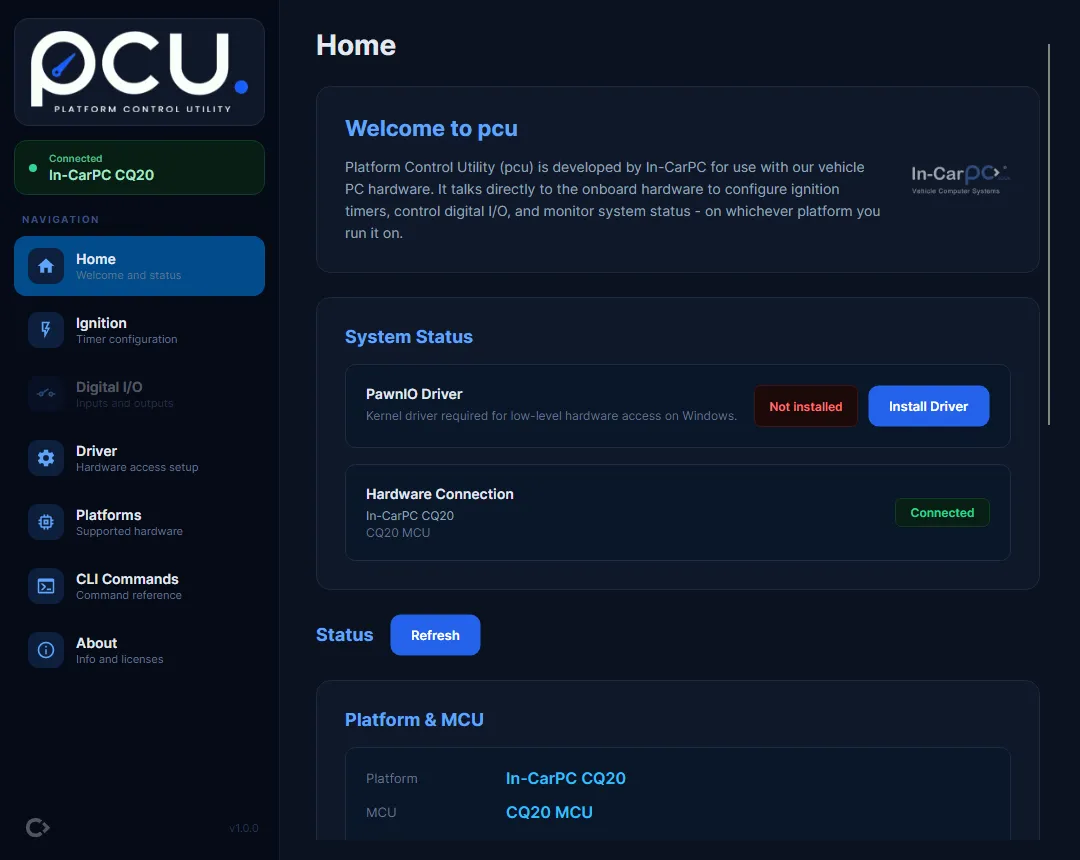
Section titled “The window”The main window is titled “pcu - Platform Control Utility”. A sidebar on the left holds the connection status and the page navigation; the selected page fills the rest of the window.
Once pcu is connected, a green “Connected” indicator at the top of the sidebar names the platform. If the connection fails, an error box appears there instead, with a “Retry” button (and, on Windows when the PawnIO driver is missing, a “Driver Setup” button).
Under the “NAVIGATION” heading are seven pages:
| Page | What it is | Available |
|---|---|---|
| Home | Welcome and status | Always |
| Ignition | Timer configuration | Platforms with ignition timers (CQ20, CQ40N series) |
| Digital I/O | Inputs and outputs | Platforms with digital I/O (CQ40 series) |
| Driver | Hardware access setup | Windows only |
| Platforms | Supported hardware | Always |
| CLI Commands | Command reference | Always |
| About | Info and licenses | Always |
A page that does not apply to the connected hardware is greyed out. Hover it to see why: before pcu connects, the tooltip reads “Connect to the hardware to use this option.”; once connected to hardware that lacks the feature, it reads “This option isn’t available on this platform or pcu version.”
The Home page
Section titled “The Home page”Home opens first and is available on any platform. It shows:
- System Status. On Windows, a “PawnIO Driver” row shows “Installed”, “Not installed”, or “Reboot required”, with an “Install Driver” button when the driver is missing. On Linux, a “Kernel I2C Transport” row shows an “i2c-dev” badge instead, because there is no driver to install. A “Hardware Connection” row shows “Connected” or “Disconnected”; when connected it lists the platform description and MCU identity, and when not it reads “Not connected to MCU hardware.”
- Live status overview. Once connected, Home shows a live status dashboard that refreshes every 5 seconds while the page is open. On hardware that reports extra MCU fields, an “MCU Details” card appears alongside it. A CQ40N lists its EEPROM version, ignition mode setup, EEPROM setup, and the current delay unit there. Hardware with nothing extra to report, such as a CQ20, does not show the card at all.
- Quick Navigation. Shortcut buttons to the pages your platform supports.
- Getting Started. When pcu is not yet connected, a numbered checklist: set up hardware access
(install the PawnIO driver on Windows, or join the
i2cgroup on Linux), run on supported hardware, then configure.
The other pages
Section titled “The other pages”-
Ignition configures the power-sequence timers. See Ignition Page.
-
Digital I/O monitors inputs and switches outputs. See Digital I/O Page.
-
Driver manages the Windows kernel driver. See Driver Page.
-
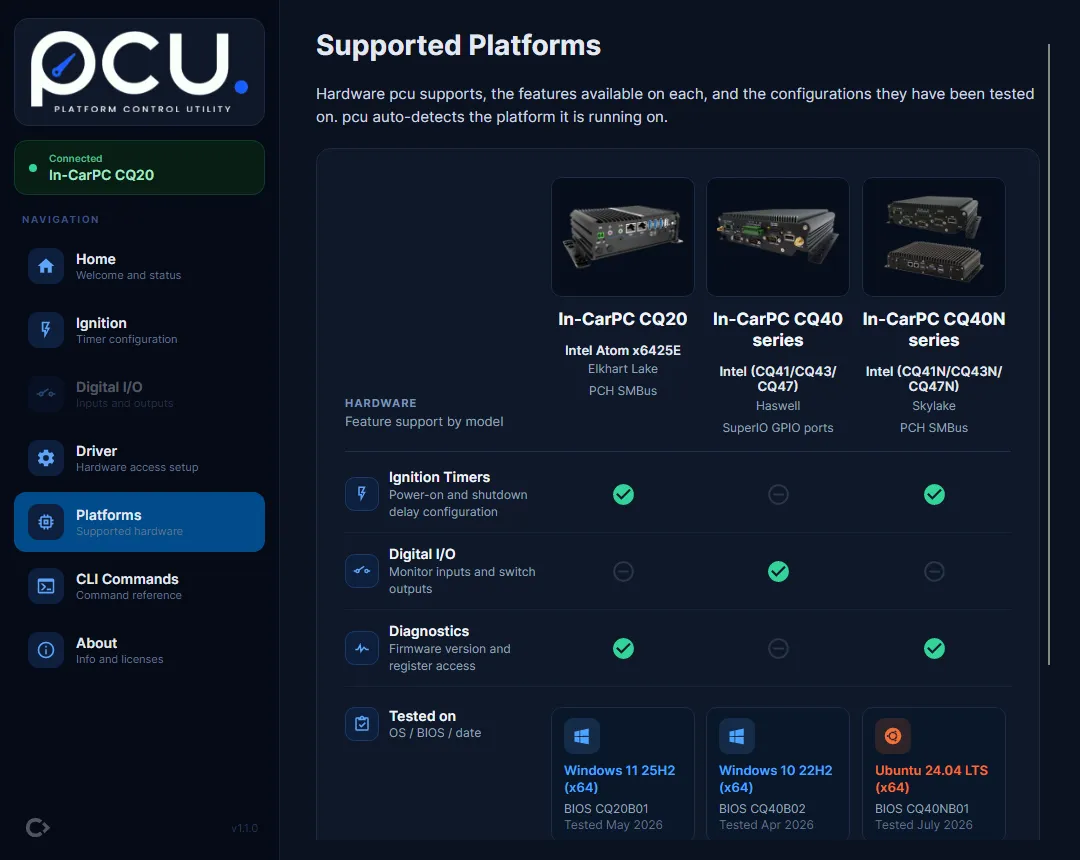
Platforms compares the supported hardware, one column per platform, with a tick or a dash for each feature and the configurations that model has been tested on. Full detail on Supported Platforms.
-
CLI Commands is an in-app copy of the
pcu-clicommand reference. It is generated from the same catalogue aspcu-cli’s own help, so the two cannot drift apart. While connected it narrows itself to the connected hardware, with a banner naming the platform, and drops the commands and timer tables that belong to other models. Disconnect to see the full catalogue. As on the CLI, a command that is not listed is not disabled: it still runs and still reports that the feature is unavailable. Full version: Command Reference. -
About shows the version, build details, transports, and licenses.
If the connection drops
Section titled “If the connection drops”pcu checks the hardware link every 5 seconds. If it is lost, the sidebar shows “Connection to MCU hardware was lost.” and its live data stops. Use “Retry” (or “Driver Setup” on Windows) to reconnect; a successful reconnect returns you to Home. See Connection and Detection if it keeps happening.